Out of Office Blockers and Notifications#
Working in a Global and Fully Remote team, it can be difficult to keep track of who is in and out. Public holidays differ, timezones differ, and a colleague on the other side of the world might not know about your awesome 2 week holiday in the Bahamas coming up. Here you’ll find the easiest and most visible ways to let people know you are away.
OoO Calender Blocker#
Whether you are going to be out of office for half a day or 2 weeks, this needs to be set.
The beauty of an OOO blocker is that it will decline your meetings automatically (except for those you set up for yourself). You can always see the declined meetings by allowing them to be visible in your calendar, so you can see what you're missing out on.
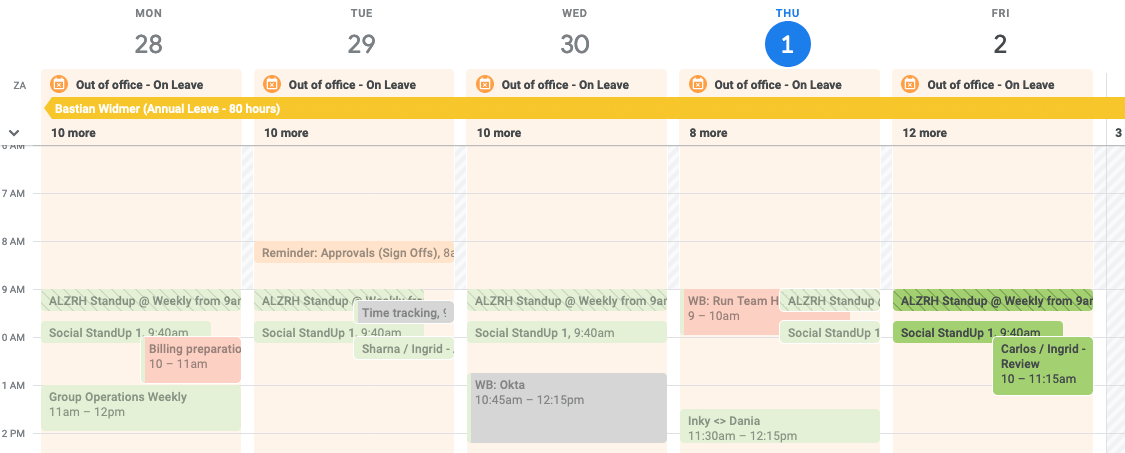
Adding the blocker#
Adding a blocker rather than an event is very easy, as it's just a matter of selecting the one over the other. GSuite is quite clever, that if you use words like Away, Leave or Vacation, it will automatically change to Out of Office.
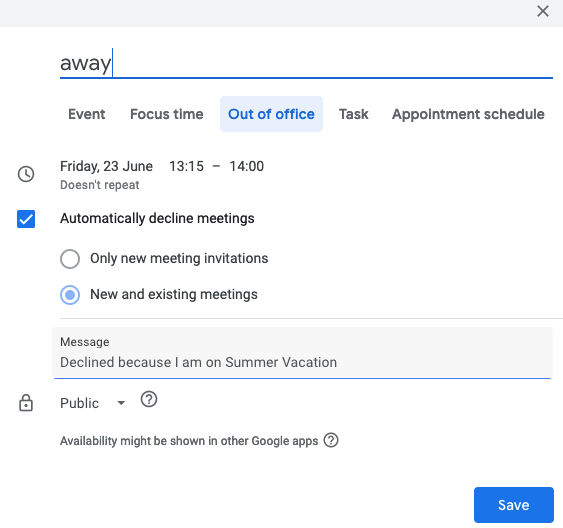
Do:
- Do make sure that you set the day/time to
All Dayif it is a full day off for you, not just 9-5 (remember, we're a global company) - Do keep the automatic decline meetings on, but you can choose the setting for
NeworNew & Existing - Do change the text in the Message to be more accurate to what you are doing, and perhaps even say when you will be back
Don’t:
- Don’t set it to Private! While it will still decline meetings, a private OoO Blocker will be hidden at the top of the calendar display in a thin strip saying “busy”, which is not easily visible to others that you are out
Why not just an event?
It's all very well adding an All-day event into your calendar that spans the time that you are going to be on leave, but it ends up hiding at the top of your calendar in a small strip view. Colleagues may not see this if they are trying to find a meeting slot with you. Also, meetings won’t be declined.
Slack OoO Status#
As Slack is our primary platform for communication, it is likely that both team members and clients will use Slack to contact you, even on your time off.
While the out of office email responses are only necessary for longer periods - e.g. a week or two - setting your Slack OoO for a single day might spare you some noise when all you need is a time-out.
Set yourself as away#
Turn off your green light to indicate that you are offline. This is a status that is visible to all Slack users, within the amazee.io space and via Slack Connect.
- Just type
/awayin any channel, or go to your profile in the top right. - When you start using Slack again, it will ask if you want to be set back to active, or just type
/active
Set your status#
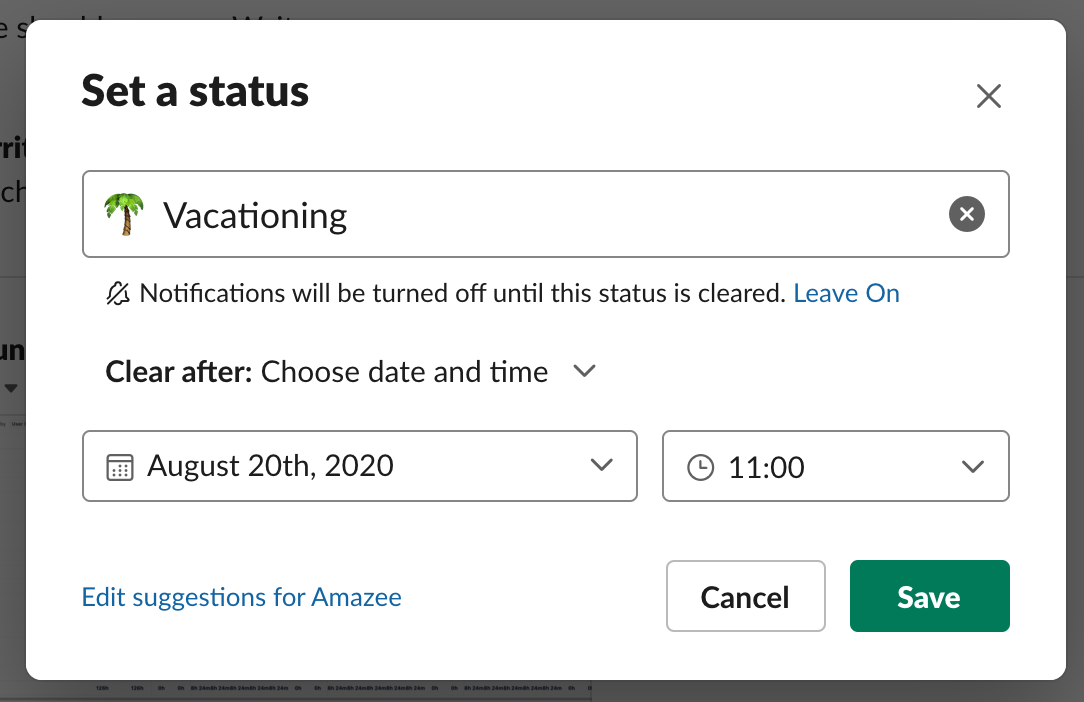
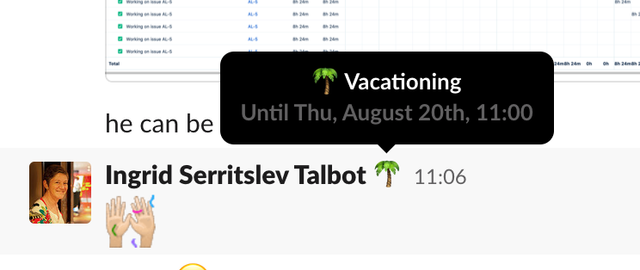
Add a status which tells people where/how long you’re out for, and which can automatically clear after a set time.
- Type
/status, or go to your profile in the top right
Note: this is only visible to users within the amazee.io Slack account, not to Slack Connect users (i.e. Clients, Mirantis).
Change your name#
This is the most visible option, as all users via Slack Connect will be able to see this.
- From anywhere in Slack, click on your name to go to your full profile.
- Add
- OOO until ...in your Slack display and full name to make sure external partners and clients know you are not available


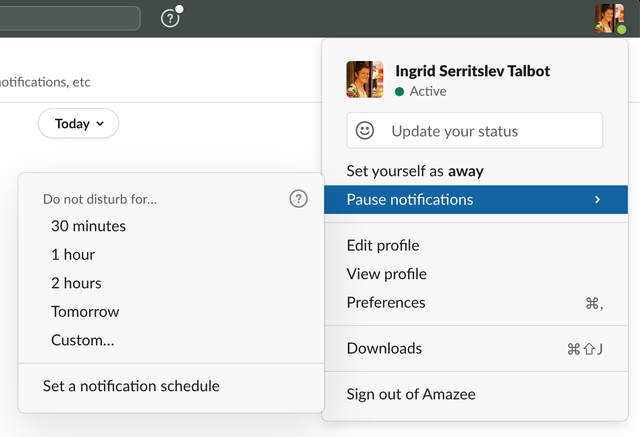
Pause notifications#
Stop any notifications coming through to you during the time that you are off.
This has a dual benefit: you get some quiet time, and the user trying to message you is made aware that you are away.
- Type
/pause, or go to your profile in the top right - You’ll be prompted to set a time frame, so that notifications start again automatically

OoO Email Auto-responder#
When you are going to be away from your desk for longer periods of time, ensure that you have an email auto-responder on, to be able forward any communications to the correct person in your team.
For each Workstream the email might be slightly different, depending on the type of emails you are receiving, and who they need to be forwarded on to.
A standard structure of an OoO email would be:
Example
Subject: Out of office - [Reason]
Thank you for your e-mail.
I am [away doing something], returning to my desk on [date].
If you need help, please contact [someone on my team].
Best regards
[Your name]
Date format: to avoid confusion, please use a very clear date format, such as Tuesday 2nd May. Please avoid using 2/3/2023, as it’s not clear whether you’re coming back in February or March.
Some reason examples:
- Holiday: I am out on summer vacation, returning on …
- Short holiday: I am out on a long weekend, returning on …
- Conferences: I am currently attending
[Event name]and only have limited access to my e-mails. I will be returning on… - Different time zone: I am currently working from a different time zone and there might therefore be a delay in my response to you. I will be back in my regular office hours on …
Some contact examples:
- Generic: In urgent cases please contact us on our Slack Channels, else contact
[Person Full Name], [email address] - BizOps: Please contact operations@amazee.io for general queries while I am away, else hr@amazee.io or billing@amazee.io for more specific questions.
- Platform or Support: If you need to get a hold of our support team, please send an e-mail to support@amazee.io